In order for the objects created in the "Coin" Node and the "game" scene that we created in the previous section to be collected by the Player, a script must be defined for the "Coin" Node.
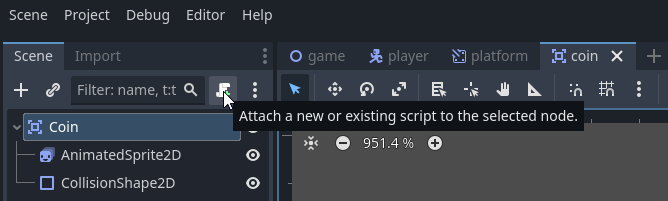
1. To create a new script, while the "coin" Scene and "Coin" Node are selected, click the "Attach a new or existing script to selected node" button:
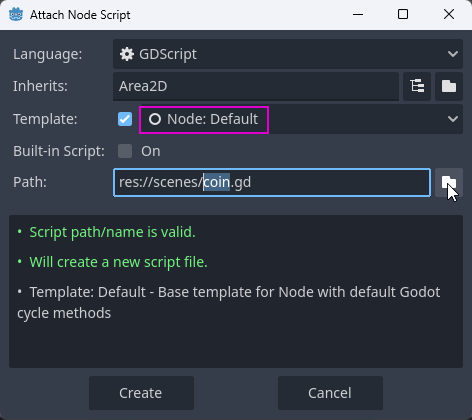
2. In the window that opens, change the value in the "Template" line to Node: Default and click the button on the far right of the "Path" line.
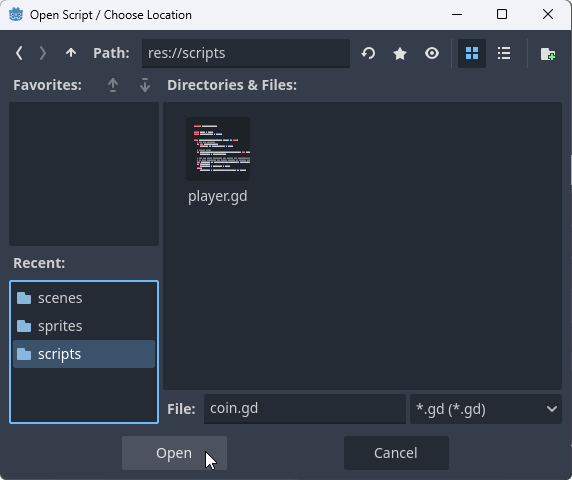
3. In the opened window, go to the "scripts" directory, select the "coin.gd" file and click the "Open" button.
4. When we return to the previous window, click the "Create" button.
5. This process creates a script for the "Coin" Area2d Node. There are 2 automatically created functions in the script:
extends Area2D

# Called when the node enters the scene tree for the first time.
func _ready() -> void:
 pass # Replace with function body.

# Called every frame. 'delta' is the elapsed time since the previous frame.
func _process(delta: float) -> void:
 pass
Neither function performs any action.
When we edit the script as follows,
extends Area2D

# Called when the node enters the scene tree for the first time.
func _ready() -> void:
 print("This is a coin")

# Called every frame. 'delta' is the elapsed time since the previous frame.
func _process(delta: float) -> void:
pass
No action takes place in the game, but the message "This is a coin" is written to the screen in the "Output" window at the bottom of the development environment, once for each coin in the scene.
6. Delete the script content completely.
We need to use "signal" to ensure that an action is performed when the player enters the "Coin" field.
Signal: Allows the code to be triggered depending on events. Godot contains many built-in signals.
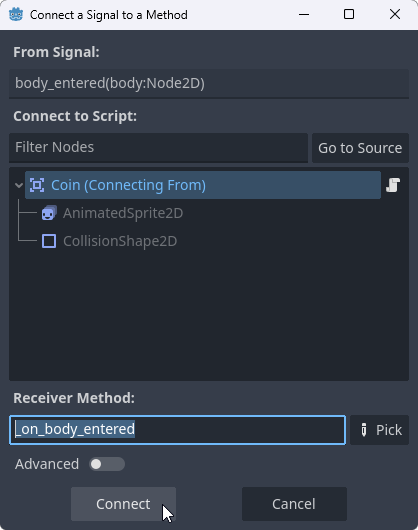
7. To connect the signal, when the "Coin" Node is selected, when we click on the "Node" tab on the right, we see many signals. Double-click on the body_entered signal and click the "Connect" button in the window that opens.
8. The following lines are added into the Script.
extends Area2D

func _on_body_entered(body: Node2D) -> void:
 pass # Replace with function body.
9. When we edit the script as follows,
extends Area2D

func _on_body_entered(body: Node2D) -> void:
print("You get +1 coin")
In the game, no matter which Coin area the Player enters, this message is shown in the "Output" window at the bottom of the development environment for each Coin.
This message is shown when other objects enter the Coin area along with the Player. In order for this function to be activated only when the Player enters the Coin area, we need to put the Player in a different "Physics Layer".
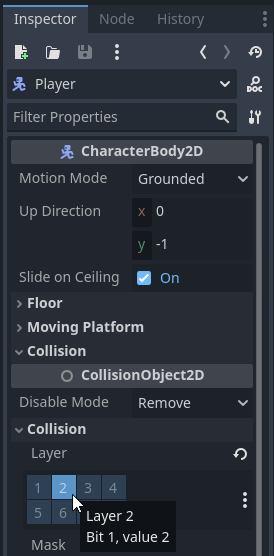
10. With "player" Scenes and "Player" Node selected, under the "Inspector" tab, in the "Collision" row, select the value 2 from the "Layer" table.
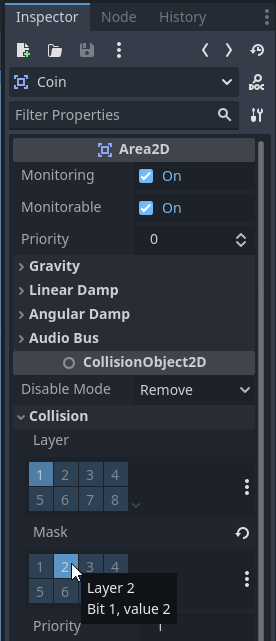
11. While "coin" Scenes and "Coin" Node are selected, under the "Inspector" tab, in the "Collision" row, select the value 2 from the "Mask" table.
12. When we edit the script as follows, the Coin object that the Player entered into the area will disappear.
extends Area2D

func _on_body_entered(body: Node2D) -> void:
queue_free()
13. When we save all scenes with Ctrl-S and run the game, the Coin disappears when the Player enters the coins' area.